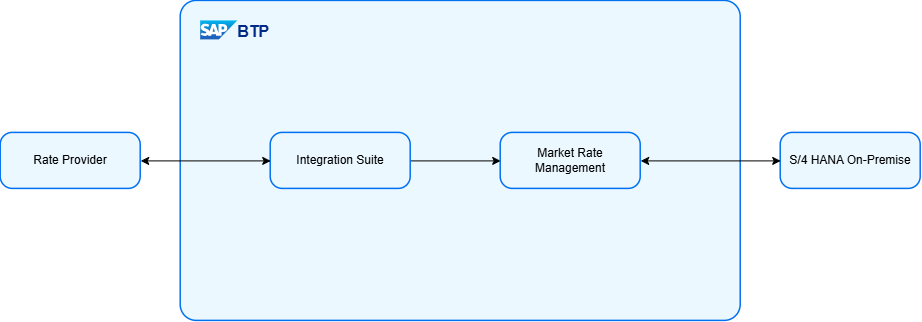
This blog post focuses on the integration between SAP Market Rates Management (BYOR) and SAP S/4HANA On-Premise. It assumes that exchange rates are already available in SAP Market Rates Management and covers the configuration required to import them into SAP.
Connecting SAP S/4HANA to SAP Market Rates Management
The official instructions from SAP are documented in the following SAP Note 2431370 – Usage of the Market Rates Management Service.
The following image highlights the customizing activities required in SPRO. Let’s go through them step by step.
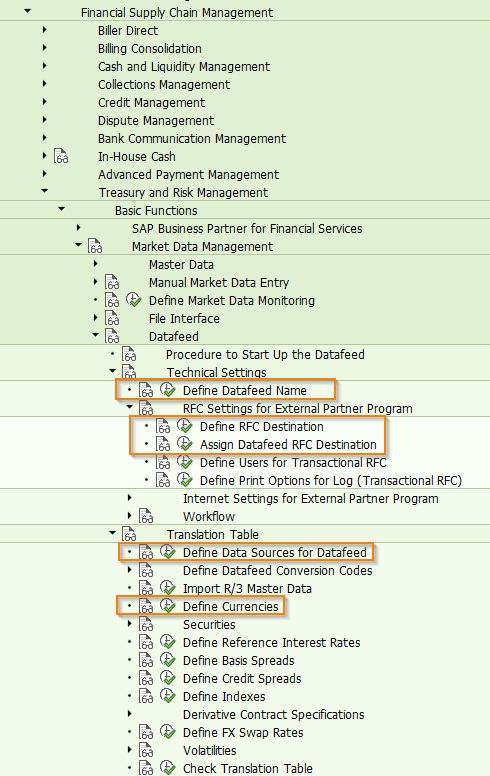
Define Datafeed Name
SPRO📦 Define Datafeed Name
First we need to define a Datafeed. This will be the base for the following configuration.

Define RFC Destination
SPRO📦 Define RFC Destination
Next we setup an RFC Connection, so the SAP System can communicate with the SAP Market Rates Management. Go to SM59 or click the link in SPRO Define RFC Destination to get there.
Create an RFC Destination:
| Key | Value |
|---|---|
| Connection Type | G |
| Host | url from service key |
| Port | 443 |
| Path Prefix | /oauth/token |
| User | Client Id |
| Password/PW Status | Client Secret |
| Logon with Ticket | Do Not Send Logon Ticket |
| SSL | Active |
| SSL Client PSE ID | Default SSL Client (Standard) |
| Proxy Host/Proxy Service | You might need to enter a proxy configuration depending on your company’s network configuration |
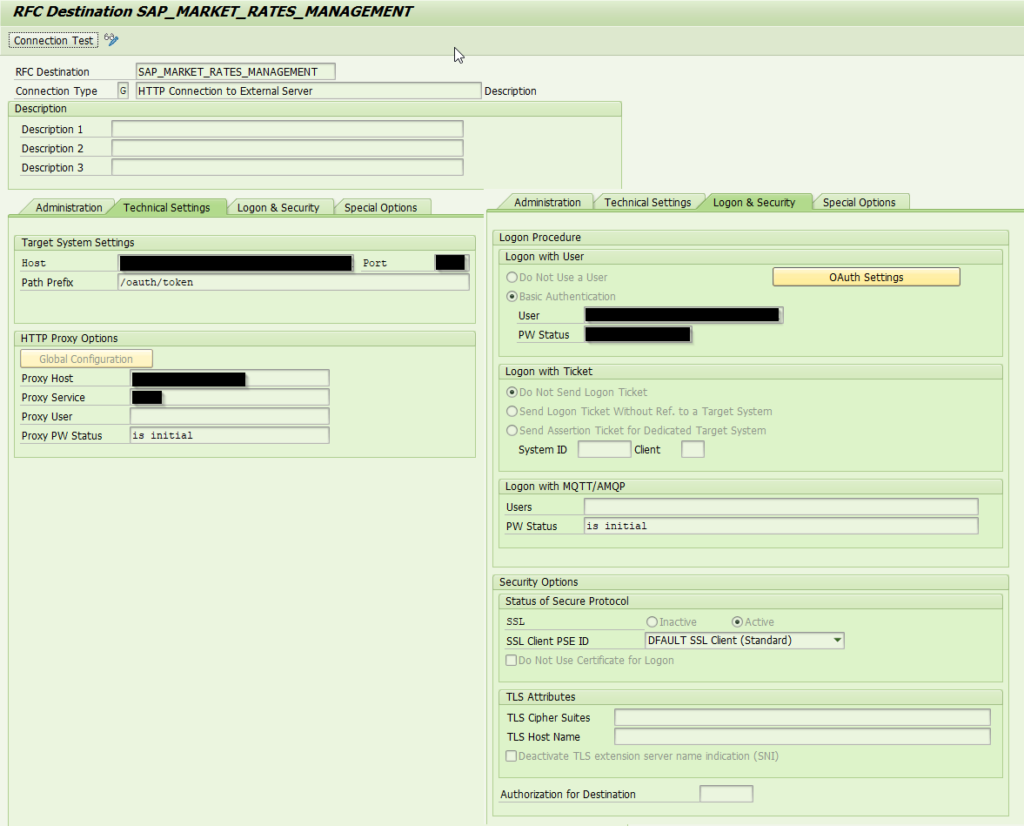
After creating the RFC destination, perform a Connection Test. An HTTP 400 Bad Request response is expected and confirms that the SAP system can successfully reach the SAP Market Rates Management authentication endpoint.
Assign Datafeed RFC Destination
SPRO📦 Assign Datafeed RFC Destination
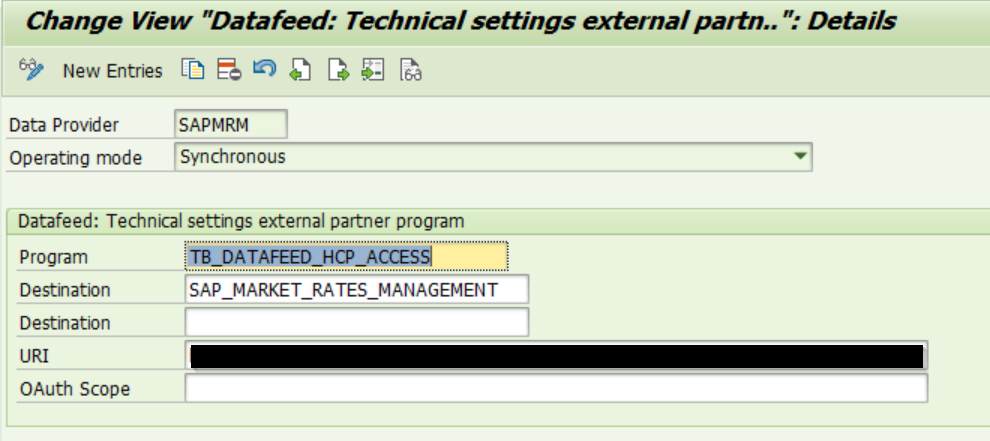
Finally assign the newly created RFC Connection to the Datafeed we created in the previous step.
| Key | Value |
|---|---|
| Data Provider | Datafeed Name |
| Operating Mode | Synchronous |
| Program | TB_DATAFEED_HCP_ACCESS |
| RFC Destination | Name of your created RFC Destination |
| Backup RFC | – |
| OAuth Scope | – |
Define Data Sources for Datafeed
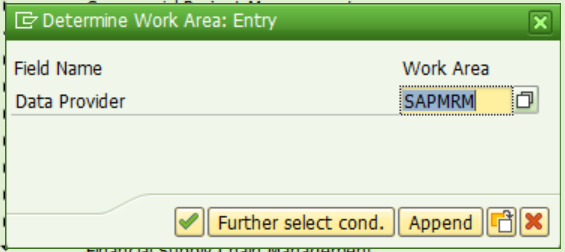
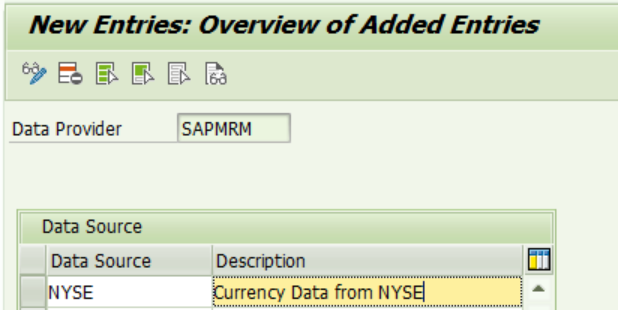
SPRO📦 Define Data Sources for Datafeed
Next we need to define the viable Data Sources for the Datafeed.
Define Currencies in Translation Table
SPRO📦 Define Currencies.
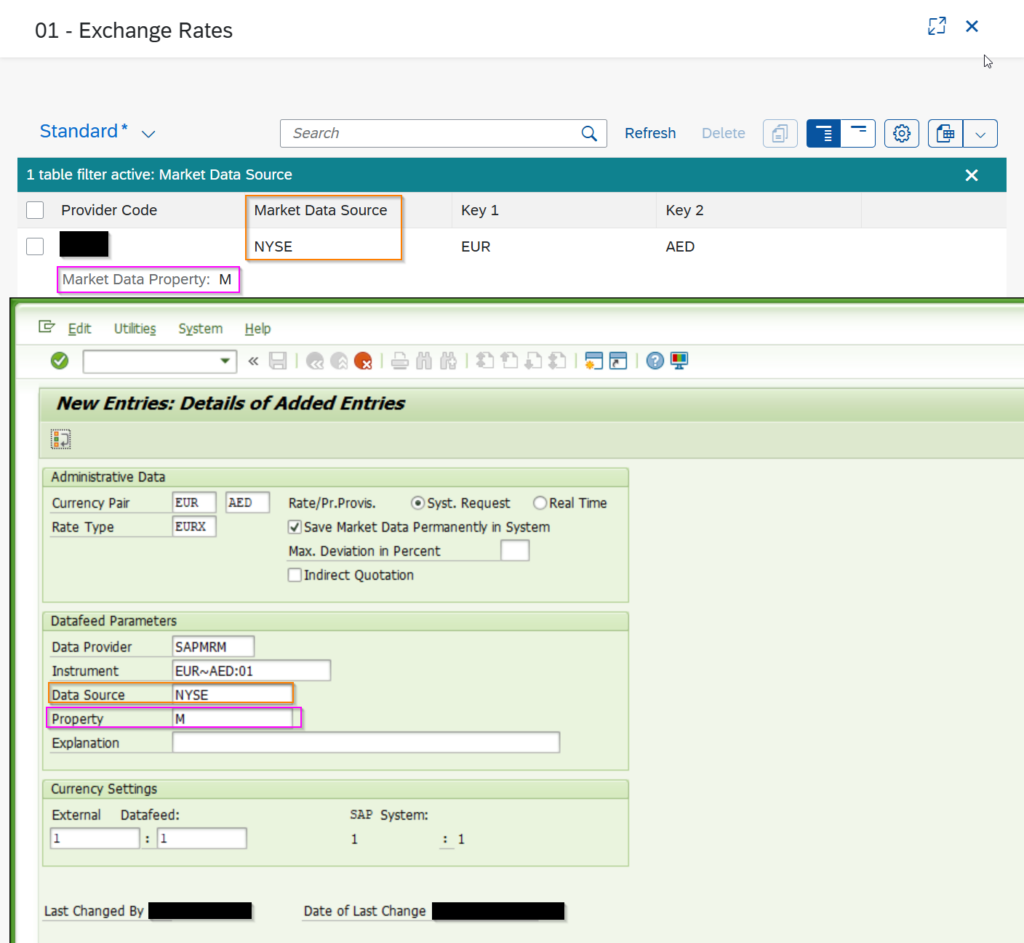
Finally, maintain the translation table that defines which currencies and exchange rate types should be imported into the SAP system.
| Key | Value |
|---|---|
| Currency Pair | {From Currency} {To Currency} |
| Rate Type | Depends on your requirements |
| Syst. Request | X |
| Save Market Data Permanently in System | X |
| Data Provider | {Datafeed Name} |
| Instrument | {From Currency}~{To Currency}:01 |
| Data Source | {Market Data Source} |
| Property | {Market Data Property} |
| External Datafeed | 1:1 |
💡Customizing all ~180 official currencies is kinda frustrating. Creating a program that writes directly in the database table vtb_dfcu and assigning the entries to an transport afterwards is more efficient. See Generate Customizing via an custom report
💡External Datafeed Factor seems to have no impact at all. Which is good as its maintained in SAP Market Rates Management. Take a look at the function module
TB_DATAFEED_HCP_ACCESSif you want to know the details of how the data transer works.
Syncing the data
Customizing done, let’s pull the market data. The synchronization of market data can be performed using two SAP standard transactions:
- TBD4 – Datafeed: Request Current Market Data
- TBDJ – Datafeed: Request Historical Market Data
TBD4 is used to retrieve and synchronize the latest market data available from the configured datafeed, in our case SAP Market Rates Management. If historical data is required, transaction TBDJ can be used. In addition to the standard selection options, TBDJ provides date range criteria that allow you to download historical exchange rates and other market data for a specific period.
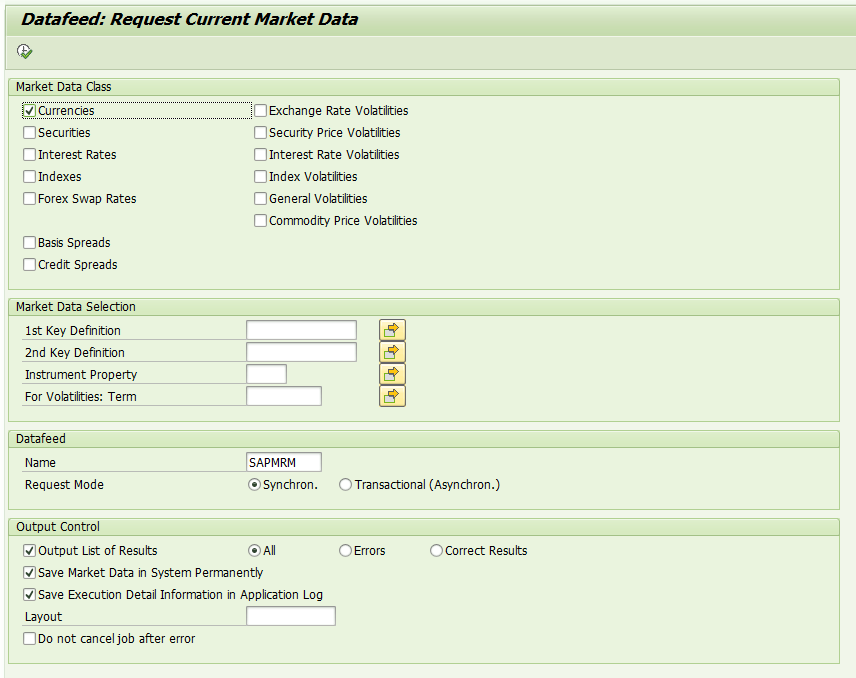
To start the synchronization, execute either transaction TBD4 or TBDJ. Select Currencies under Market Data Classes, enter the datafeed name that was configured in the previous steps, and execute the transaction.
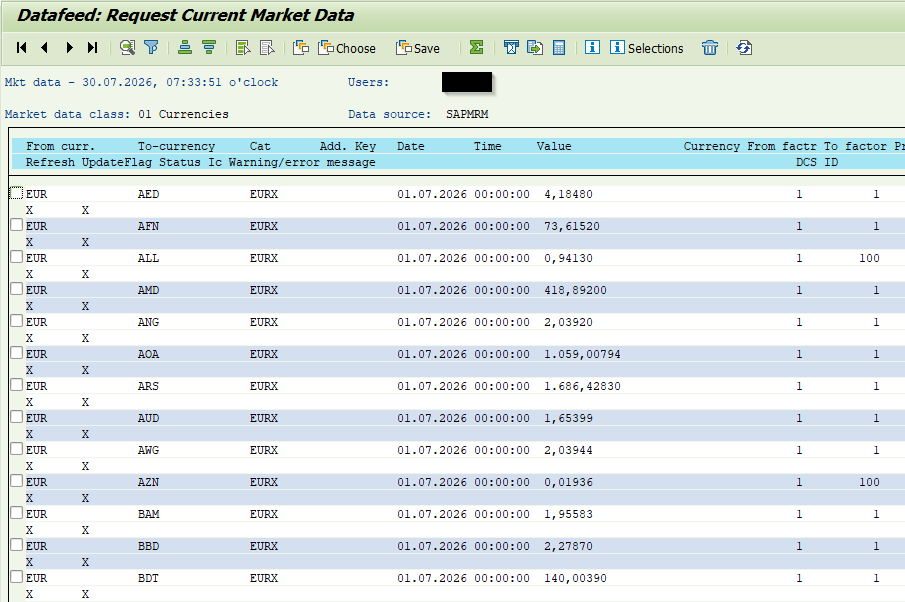
Once the synchronization is complete, a list of results is displayed containing all details about the synchronized market data.
Good to Know
Generate Customizing via an custom report
Customizing all ~180 official currencies is time-consuming. A simple ABAP report can be used to generated the required customizing entries automatically. The report writes the customizing directly in to the database table vtb_dfcu. After executing the report open the customizing, select all entries and write them to your customizing transport.
REPORT zfi_mrm_curr_cust_setup.

TABLES: tcurc.
DATA: bapi_messages TYPE bapiret2_t.
DATA: bapi_msg TYPE bapiret2.
DATA: customizing_entry TYPE vtb_dfcu.

PARAMETERS: p_instr  TYPE tb_instr DEFAULT 'EURX' OBLIGATORY,
            p_key1   TYPE tb_key1 DEFAULT 'EUR' OBLIGATORY,
            p_dfname TYPE tb_dfname DEFAULT 'SAPMRM' OBLIGATORY,
            p_inid2  TYPE tb_inid2 DEFAULT 'NYSE' OBLIGATORY,
            p_PRPTY  TYPE tb_PRPTY DEFAULT 'M' OBLIGATORY.

SELECT-OPTIONS: s_fcurr FOR tcurc-waers.

START-OF-SELECTION.

*--- Create Customizing
  LOOP AT s_fcurr INTO DATA(curr_range).
    CLEAR customizing_entry.
    customizing_entry-sclass = '01'.
    customizing_entry-rkey1 = p_key1.
    customizing_entry-rkey2 = curr_range-low.
    customizing_entry-sinstrumnt = p_instr.
    customizing_entry-rfeedname = p_dfname.

    customizing_entry-rinid1 = |{ customizing_entry-rkey1 }~{ customizing_entry-rkey2 }:{ customizing_entry-sclass }|.
    customizing_entry-rinid2 = p_inid2.
    customizing_entry-sprpty = p_prpty.
    customizing_entry-ffact = 1.
    customizing_entry-tfact = 1.
    customizing_entry-rupdhist = abap_true.
    customizing_entry-chgname = sy-uname.
    customizing_entry-chgdate = sy-datum.

    MODIFY vtb_dfcu FROM customizing_entry.
    IF sy-subrc EQ 0.
      APPEND VALUE bapiret2( type = 'S' message = |Customizing Entry Creation of { customizing_entry-rinid1 } succeeded.| ) TO bapi_messages.
    ELSE.
      APPEND VALUE bapiret2( type = 'E' message = |Customizing Entry Creation of { customizing_entry-rinid1 } failed.| ) TO bapi_messages.
    ENDIF.
  ENDLOOP.

*--- Message Handling
  IF sy-batch = abap_true.
    "Job Log
    LOOP AT bapi_messages INTO bapi_msg.
      MESSAGE ID bapi_msg-id TYPE bapi_msg-type NUMBER bapi_msg-number WITH bapi_msg-message_v1 bapi_msg-message_v2 bapi_msg-message_v3 bapi_msg-message_v4.
    ENDLOOP.
  ELSE.
    "Display Messages in alv
    TRY.
        DATA: alv TYPE REF TO cl_salv_table.
        cl_salv_table=>factory(
          IMPORTING
            r_salv_table   = alv
          CHANGING
            t_table        = bapi_messages
        ).
        alv->display(  ).
      CATCH cx_salv_msg INTO DATA(salv_error).
        WRITE: / 'ALV-Display failed:', salv_error->get_text( ).
    ENDTRY.

  ENDIF.
Exchange Rate Limitations
SAP stores the exchange rates in the database table TCURR. The field UKURS, which stores the exchange rate, is defined as DEC(9,5). As a result, only four digits are available before the decimal separator. For currencies with very large exchange rate values, this limitation can become problematic. For example lets look at the belarusian ruble.
- 1 EUR = 3.1776500 BYN
- 1 EUR = 31776.4715 BYR
- 1 EUR = 31776471.5 BYB
SAP cannot store the values for BYR and BYB directly because they exceed the technical limitations of the UKURS field. To solve this problem, conversion factors must be maintained in database table TCURF. SAP will automatically do the conversion when importing data from SAP Market Rates Management.
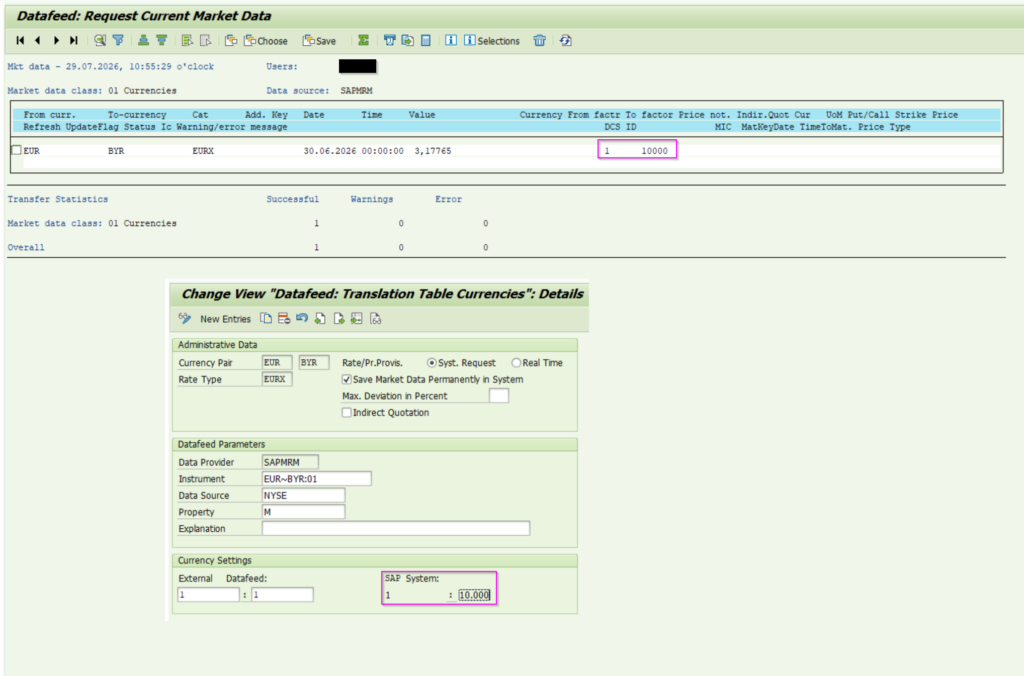
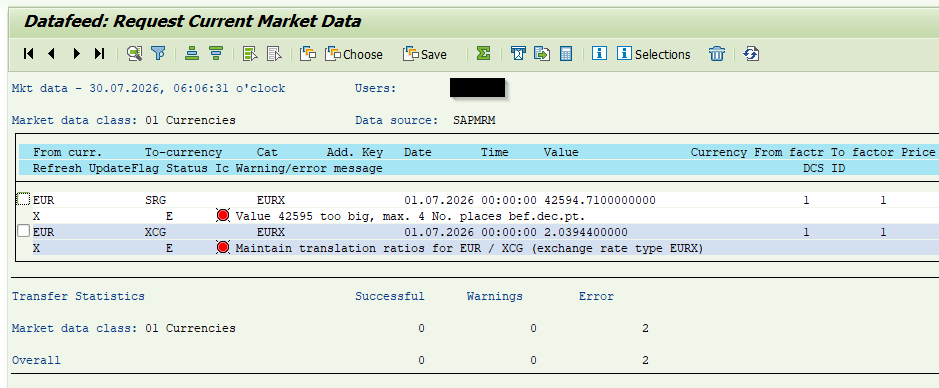
If the conversion factors are not maintained correctly, the import program will raise an error and the exchange rate will not be written to TCURR. In the following screenshot for example one value is to big – so factor needs to be maintained. For the other no factor is maintained at all.